> For the complete documentation index, see [llms.txt](https://help.tokenpocket.pro/en/llms.txt). Markdown versions of documentation pages are available by appending `.md` to page URLs; this page is available as [Markdown](https://help.tokenpocket.pro/en/wallet-operation/how-to-create-a-wallet/zksync.md).
# How to Create and Import zkSync Era∎ Wallet on TokenPocket
This guide shows you how to create, import, and sync your zkSync Era∎ wallet on TokenPocket, manage zkSync Era∎ assets, and experience fast and cost-efficient transactions with zkSync.
## **How to Create, Import, and Sync zkSync Era∎ Wallet on TokenPocket?**
### **How to create a** zkSync Era∎ **wallet in TokenPocket?**
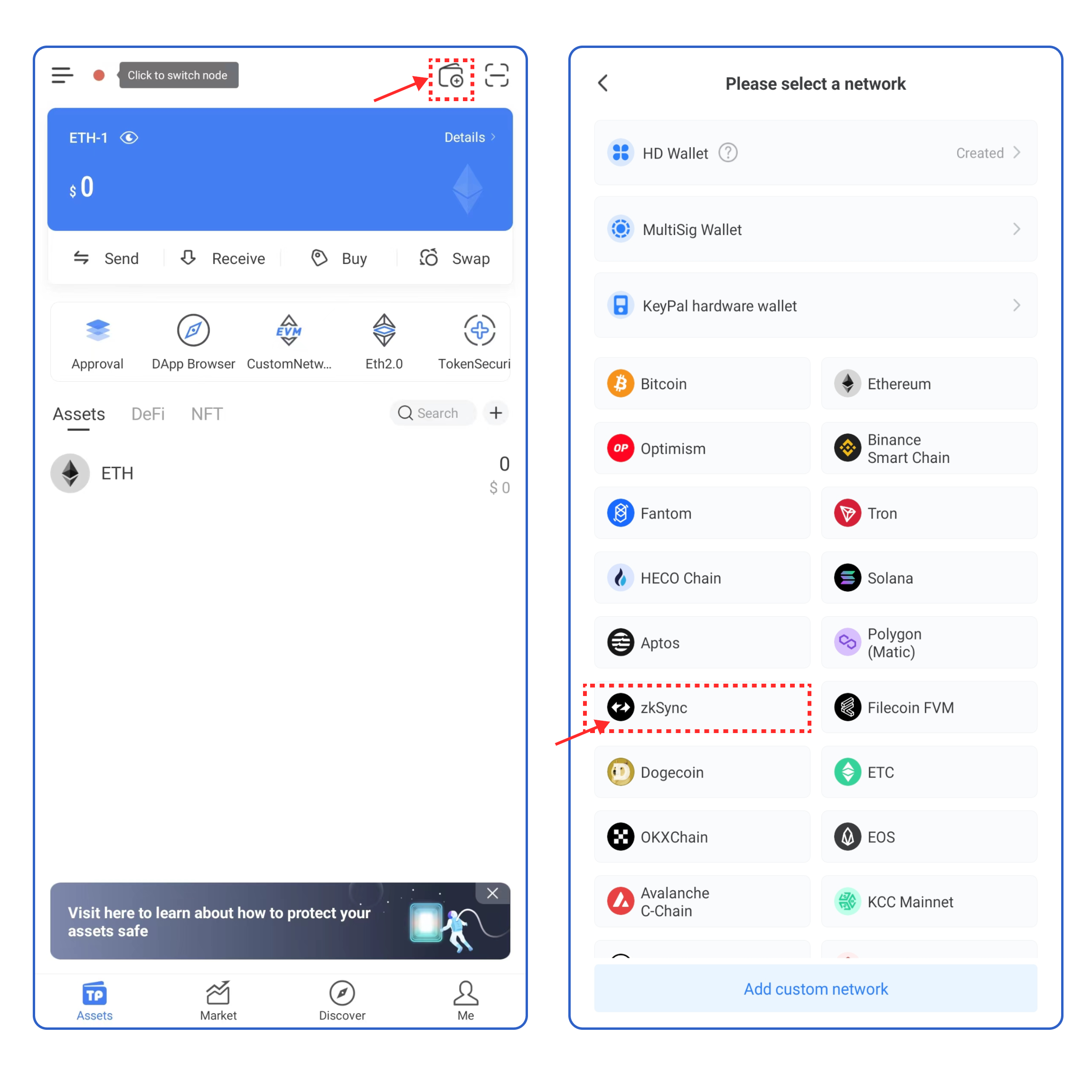
1. Open TokenPocket APP, click  on the upper right corner, and select zkSync Era∎;
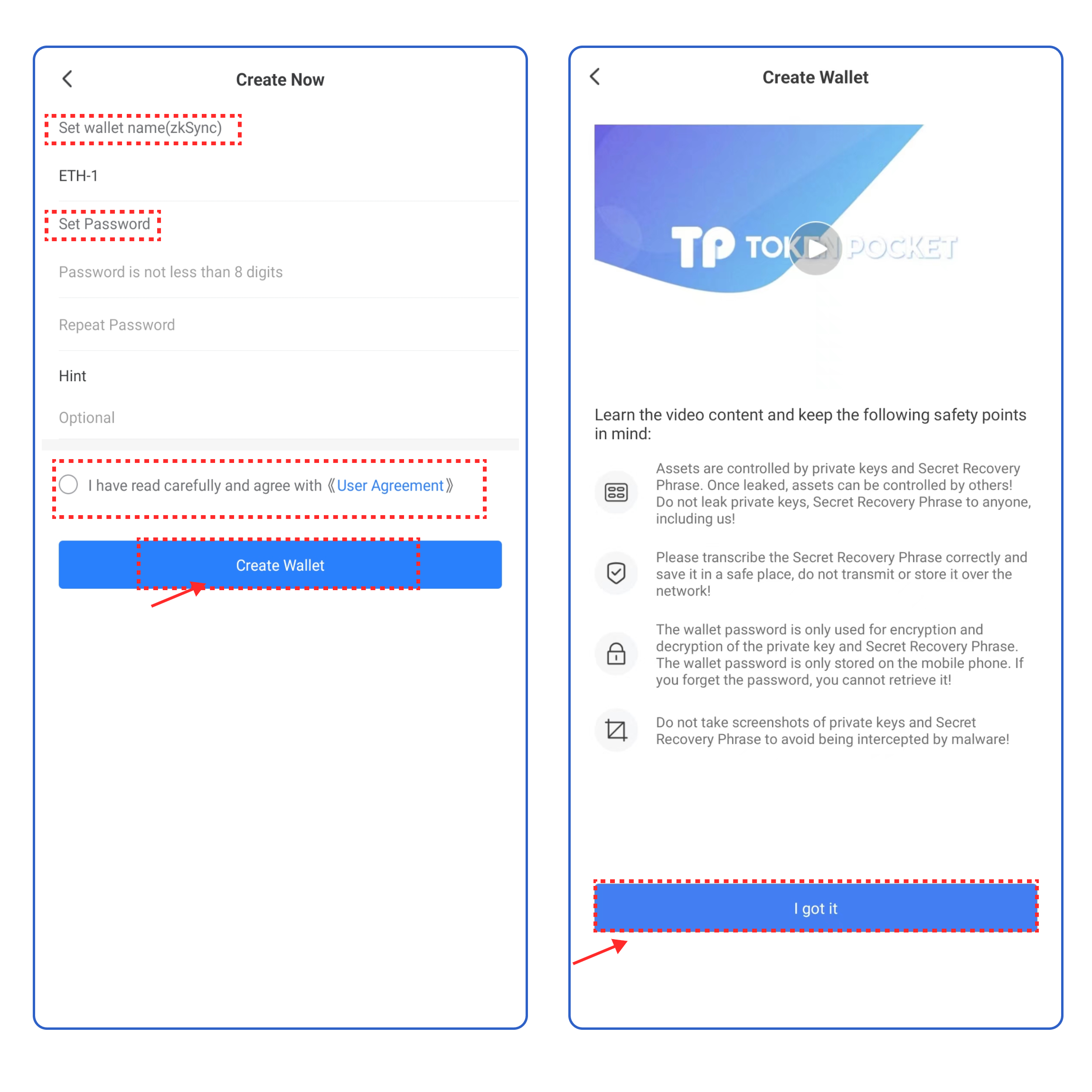
2\. Click **\[Create Wallet]** and click **\[Create Wallet]** again;
3\. Set the wallet name and password, click the User Agreement, and click **\[Create Wallet].** Watch and learn the video content, click **\[I got it].**
4\. Select the security tips, and click **\[Next Step]**. Back up the secret recovery phrase on the paper or on the [**KeyPal**](https://www.keypal.pro/en/), and store it in a safe place. Click **\[Completed backup, verify now]** .
5\. Enter your secret recovery phrase, and click **\[Confirm].** At this point, you have successfully created a zkSync Era∎ wallet.
**Attention: Do not disclose the private key or secret recovery phrase to the third party!**
### **How to import a** zkSync Era∎ **wallet into TokenPocket?**
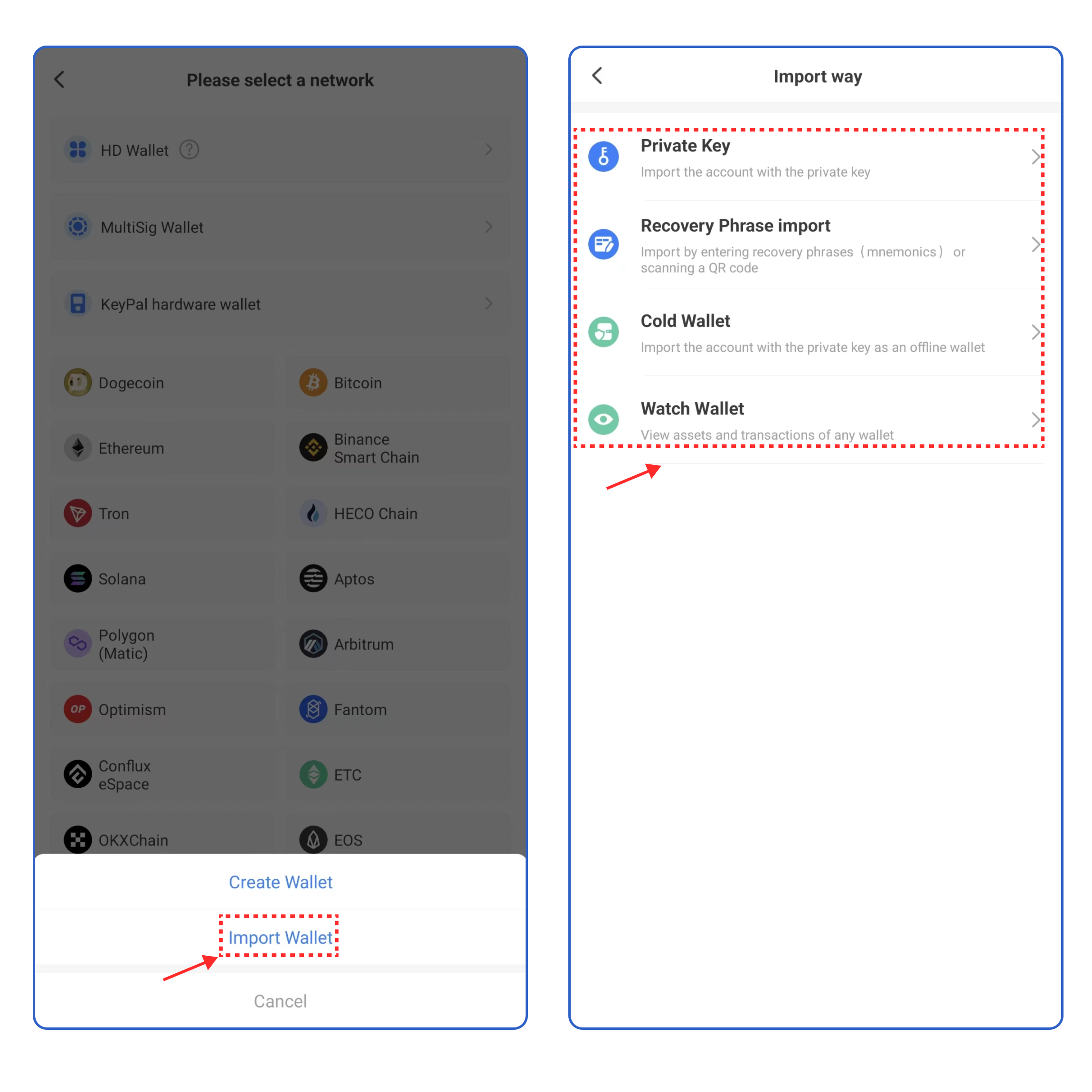
1. Open TokenPocket APP, click on the upper right corner, and select zkSync Era∎**;**
2\. Click **\[Import Wallet]**, and select the way you want to import your wallet.
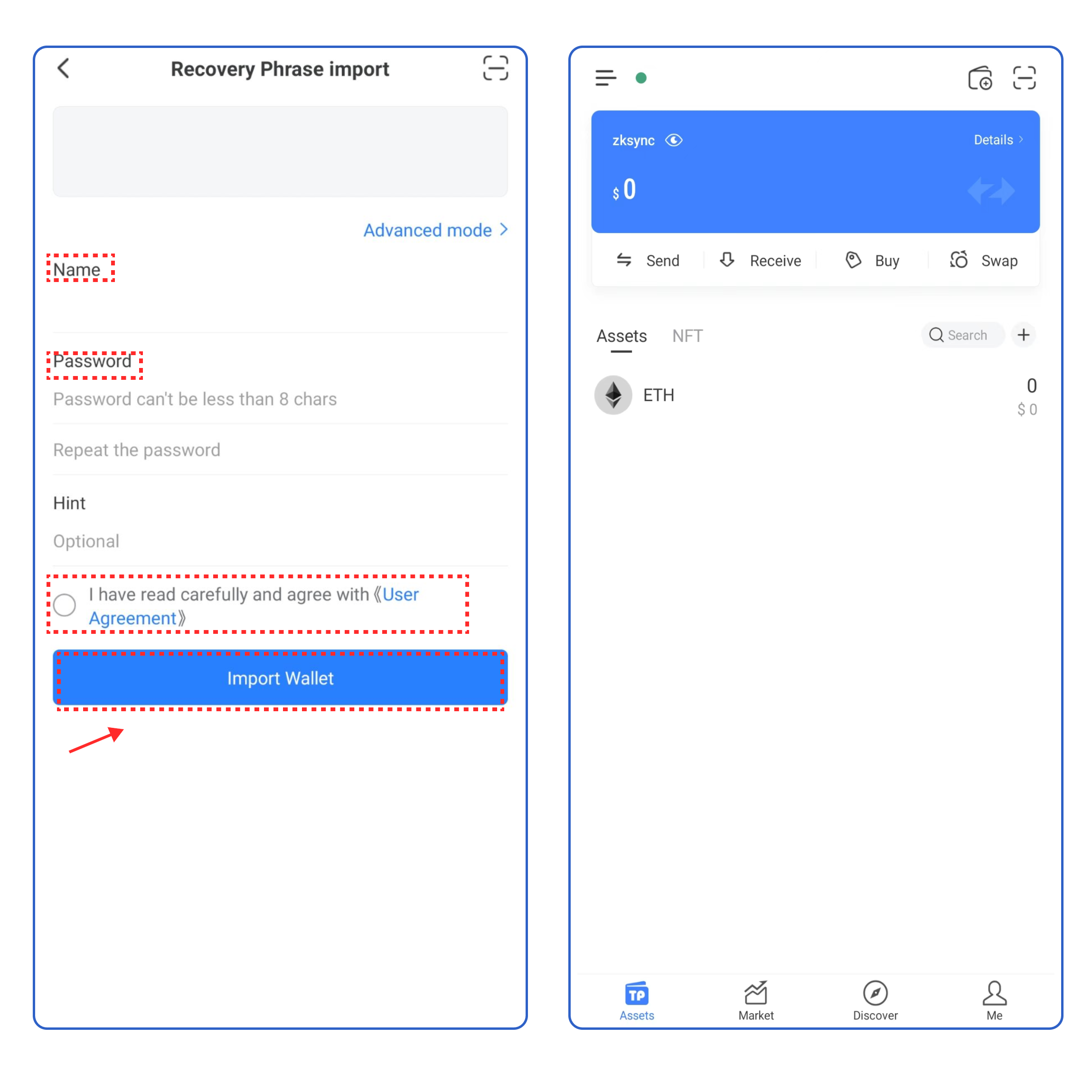
3\. Take **\[Recovery Phrase import]** as an example, enter your secret recovery phrase, wallet name, and password, click the User Agreement, and click **\[Import Wallet]**. At this point, you have successfully imported a zkSync Era∎ wallet.