# iOS Version Migration Tutorial
The TP Wallet version 2.2.1 supports data migration functionality (data import). In daily use, data migration is generally divided into two methods: one is migrating data from the TokenPocket old version to TP Wallet, and the other is migrating data backed up on the PC to TP Wallet.
It is important to note that after data migration, please verify the accuracy and completeness of the migrated data. This function serves as a convenient migration tool, but the fundamental principle is to ensure the backup of essential wallet information such as private keys and mnemonic phrases.
### Migrating data from the old version of TokenPocket to the new version on the same device.
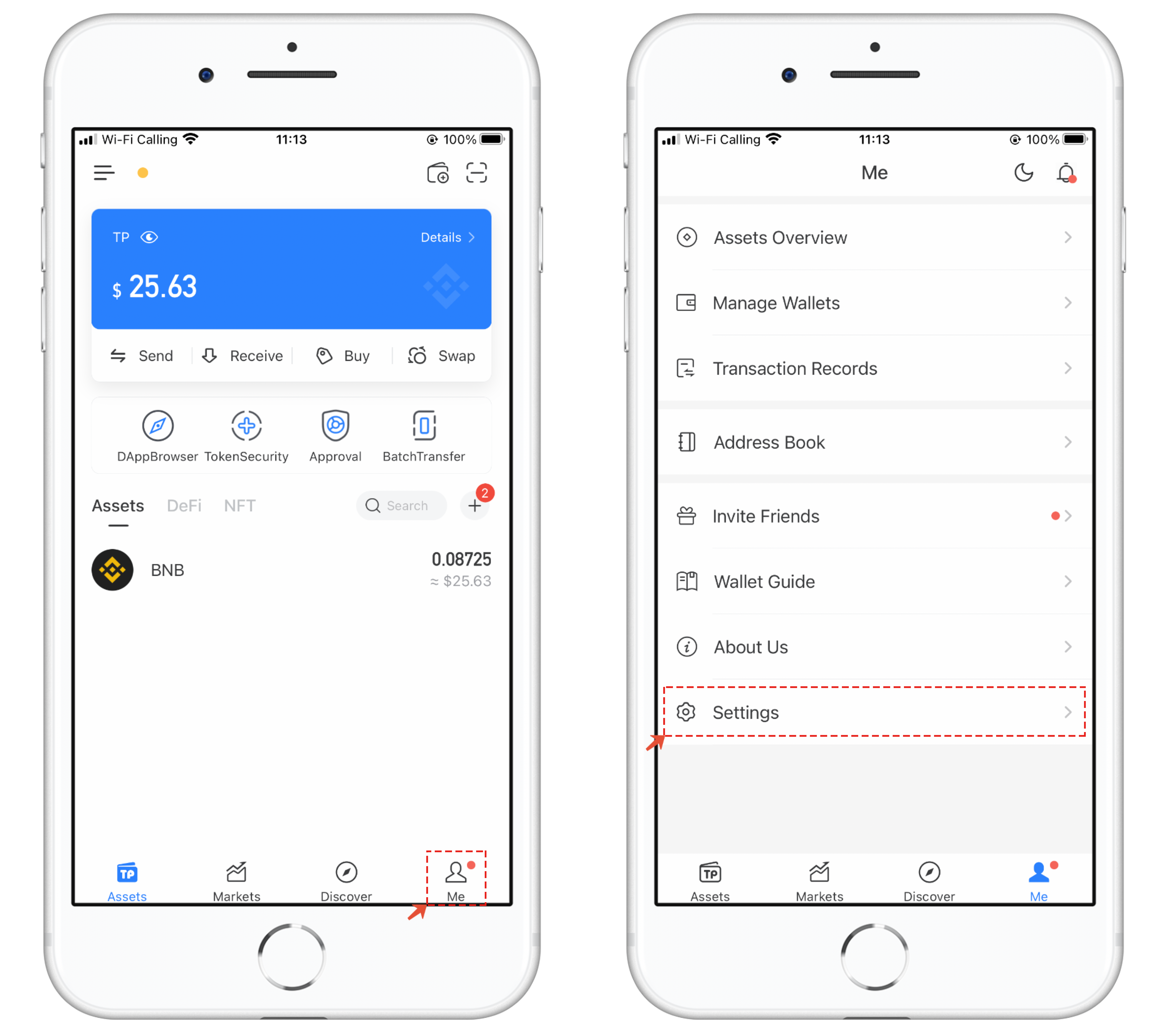
1. Open the old version of TokenPocket and click on \[My] - \[System Settings].
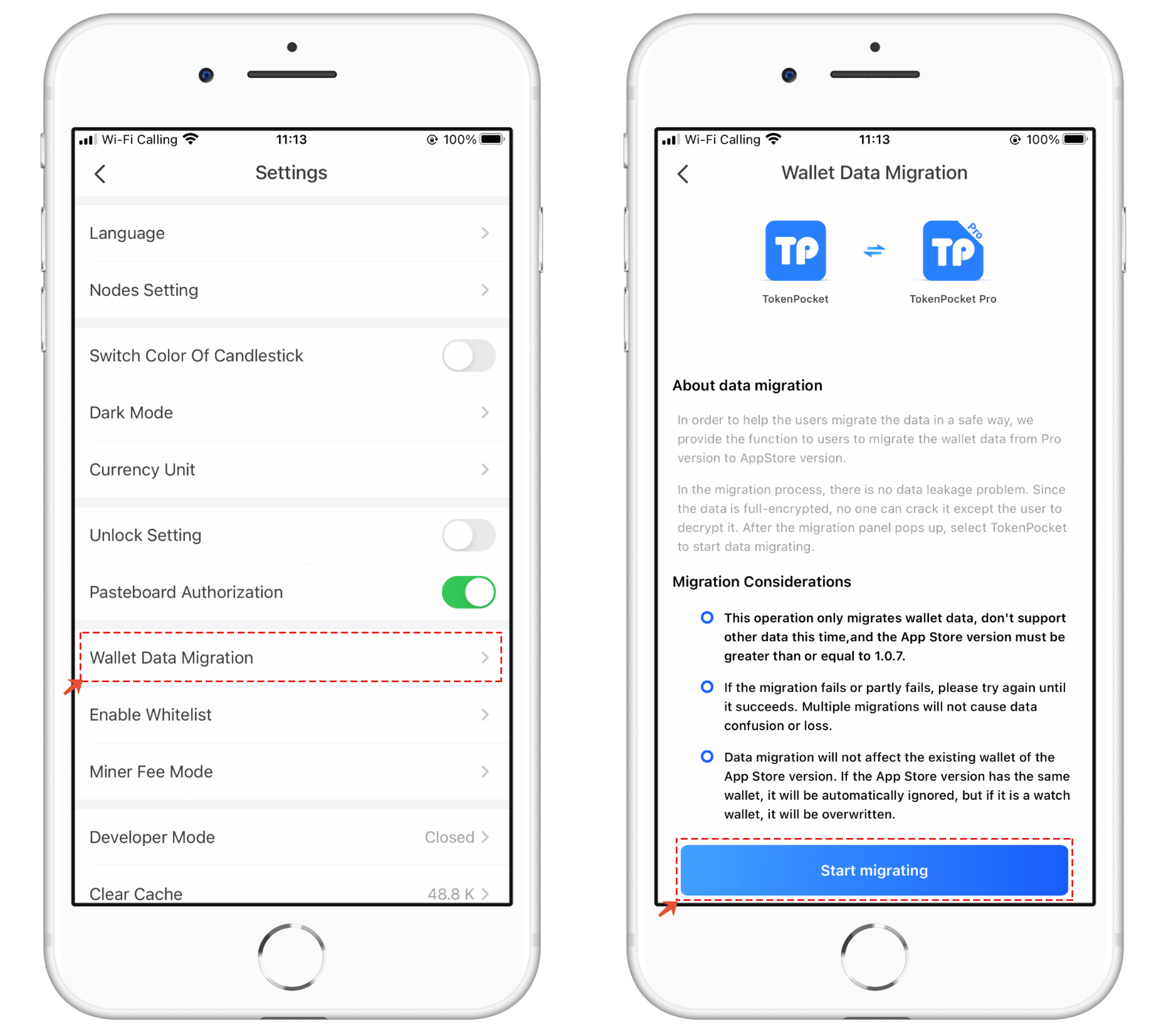
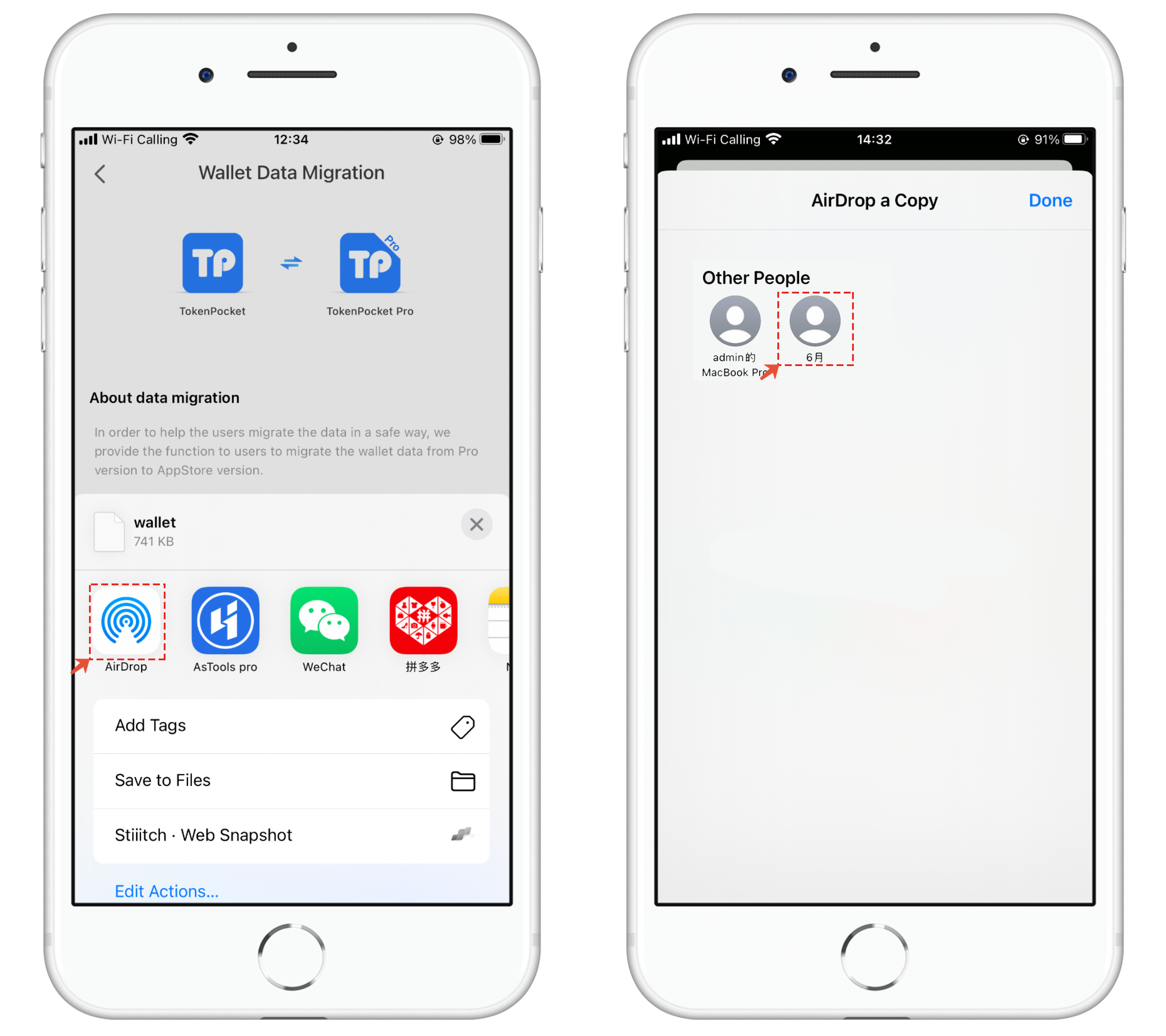
In the System Settings, select the \[Wallet Data Migration] function, read the migration notes, and click \[Start Migration].
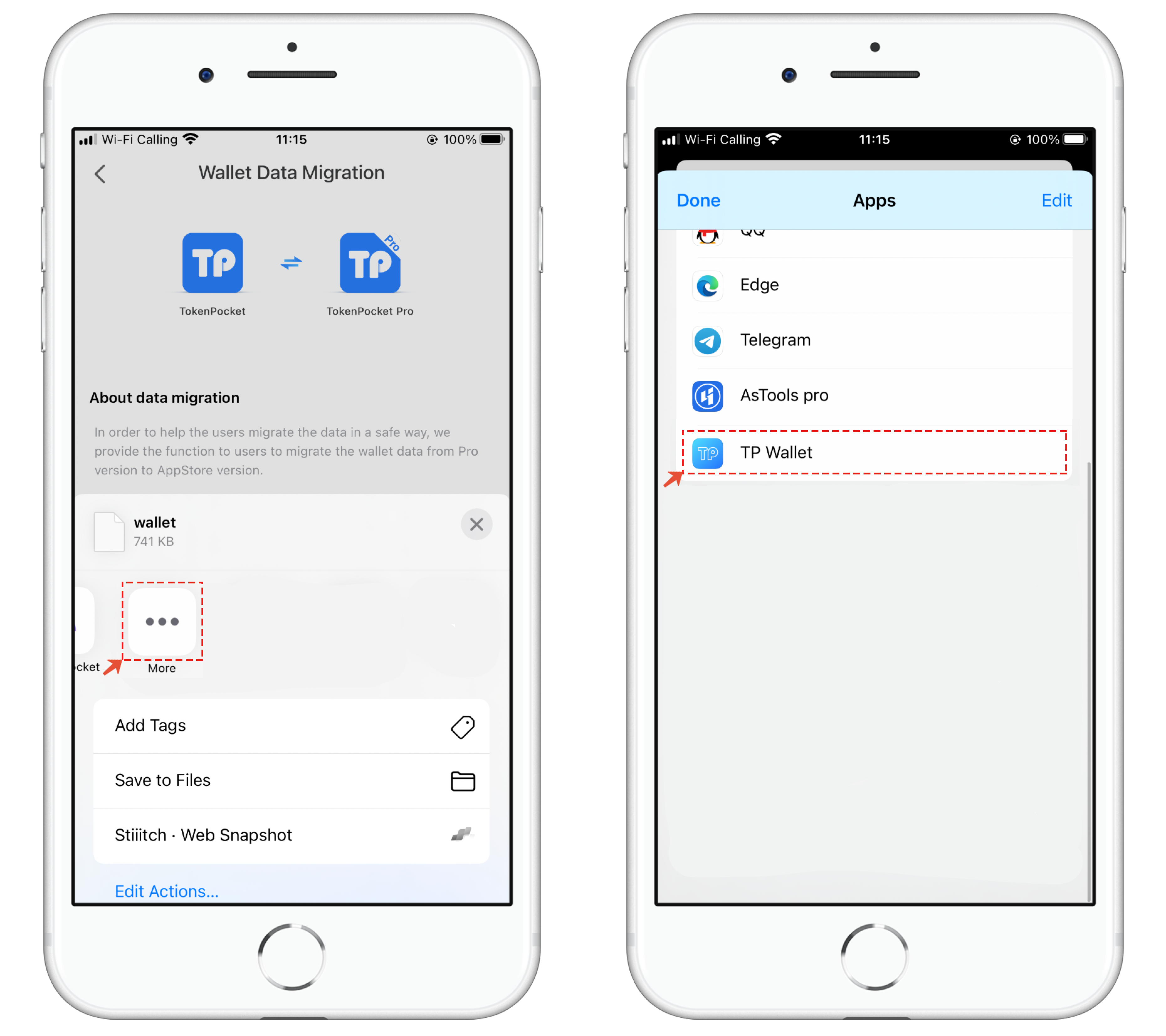
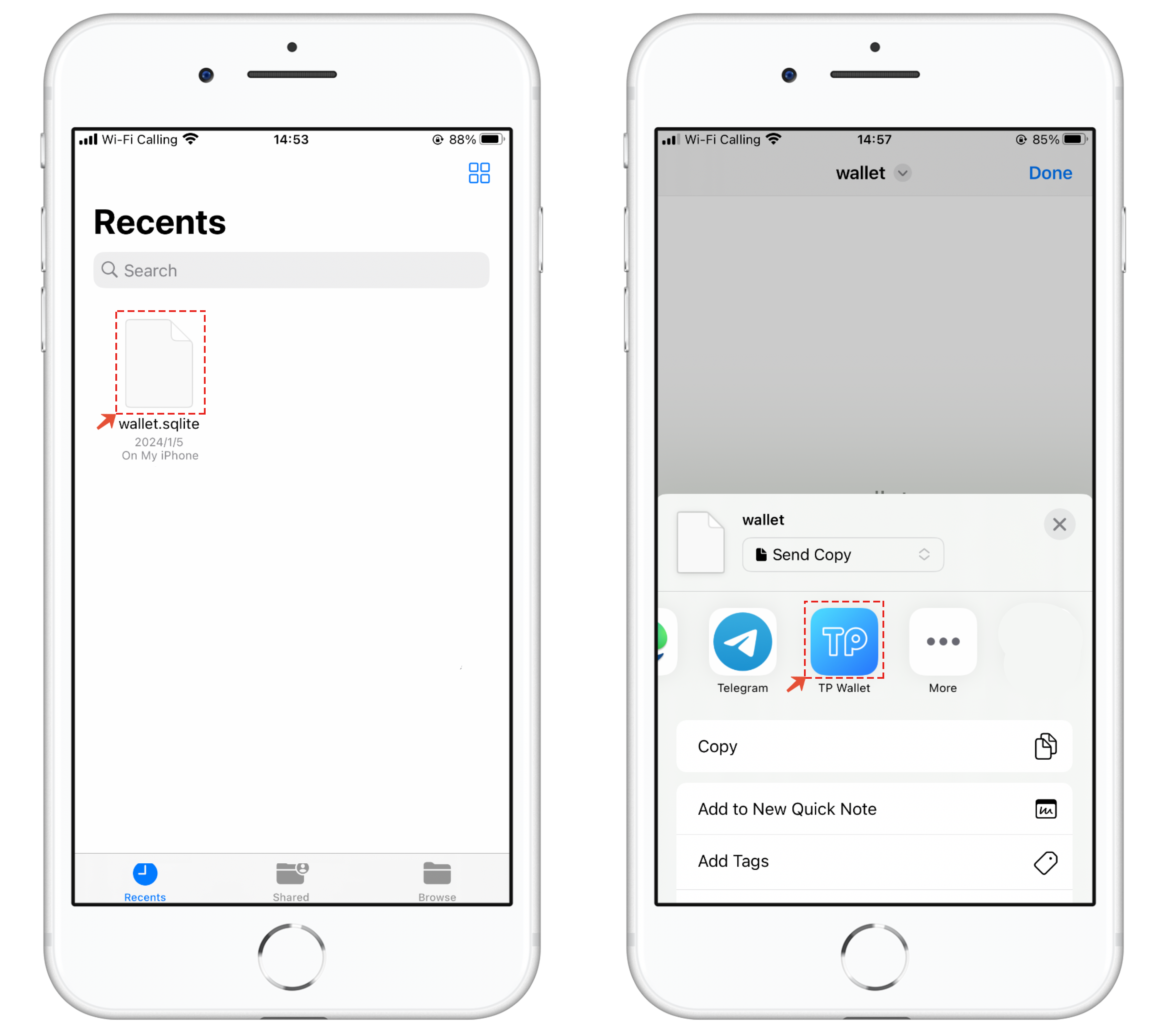
2. In the App list, select \[More], and find \[TP Wallet] to check it.
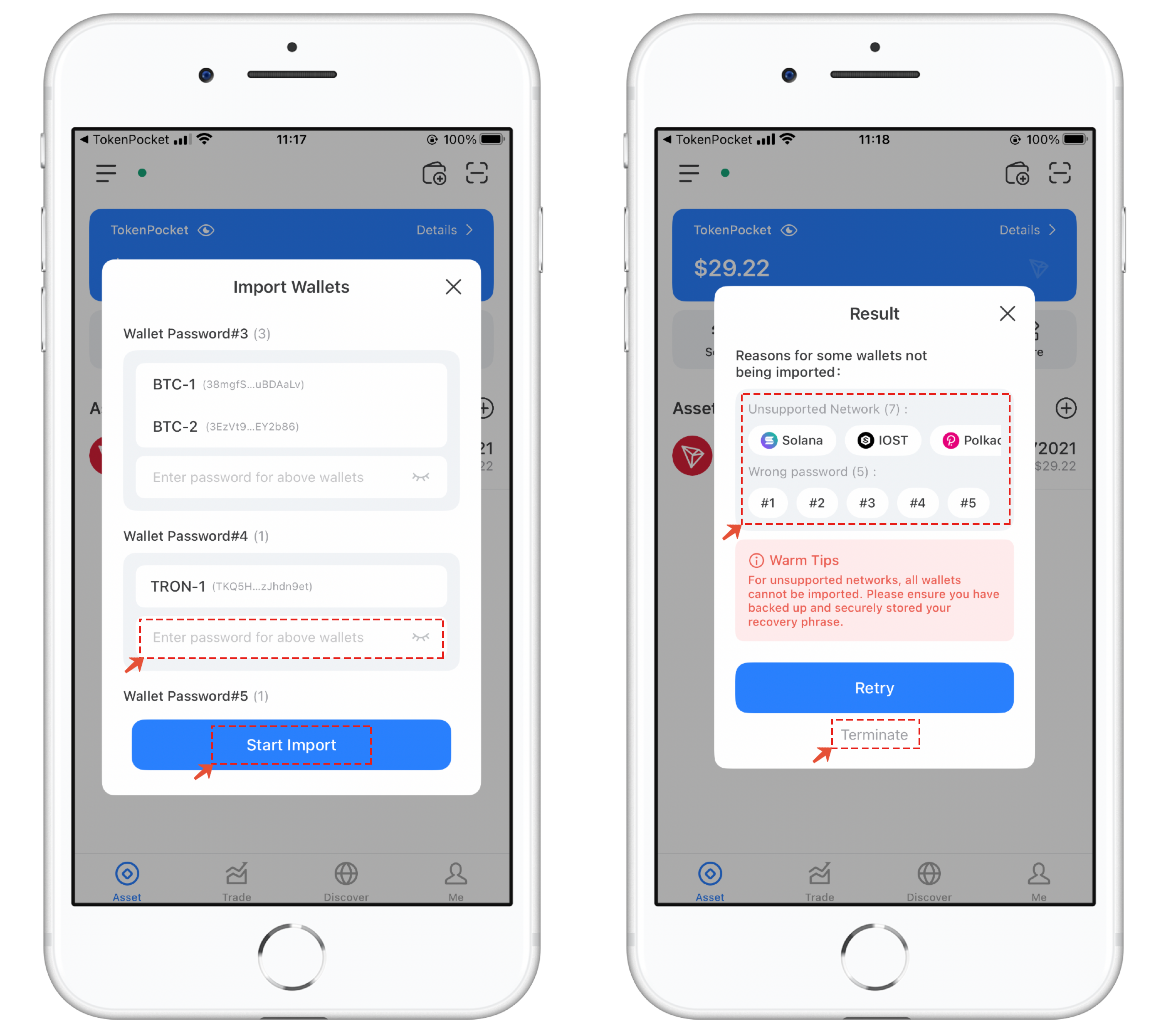
3. Pay attention to the prompt messages on the wallet import interface. Since the addresses in the old version of TokenPocket can have independently set passwords, you need to enter the correct password for the address you want to import. The import result will display messages such as unimported blockchains and password errors. After confirming that TP Wallet supports the wallet import, click \[Finish Import].
For any remaining unimported blockchains, they can be imported only after TP Wallet supports them.
### Transferring data from the old version of TokenPocket to a different device.
For importing on different devices, it is recommended to use Apple's built-in "AirDrop" feature or other secure methods for transmission. After transferring the data file, the process of opening and importing remains consistent with the local device import mentioned above.
### Importing Backup Data from PC:
Use tools on the PC to back up TokenPocket data, export the data file, and import it into TP Wallet for use. [**Click here**](https://help.tokenpocket.pro/en/wallet-operation/backup) to view this solution.
1. Transfer the exported data package to your mobile device securely and click to open it. In the app list, choose 【TP Wallet】 for import.
2. Pay attention to the prompt messages on the wallet import interface. Since the addresses in the old version of TokenPocket can have independently set passwords, you need to enter the correct password for the address you want to import. The import result will display messages such as unimported blockchains and password errors. After confirming that TP Wallet supports the wallet import, click \[Finish Import].
For any remaining unimported blockchains, they can be imported only after TP Wallet supports them.
---
# Agent Instructions: Querying This Documentation
If you need additional information that is not directly available in this page, you can query the documentation dynamically by asking a question.
Perform an HTTP GET request on the current page URL with the `ask` query parameter:
```
GET https://help.tokenpocket.pro/es/wallet-operation/data-migration.md?ask=
```
The question should be specific, self-contained, and written in natural language.
The response will contain a direct answer to the question and relevant excerpts and sources from the documentation.
Use this mechanism when the answer is not explicitly present in the current page, you need clarification or additional context, or you want to retrieve related documentation sections.